Find Tickets
There are different ways to find tickets, depending on your use case.
Via Overviews
If you search for new tickets to work on, your first look should be in the overview section. This section gives you a rough overview. More details are covered in a separate overview page.
You can either open it by clicking the Overviews button
in the navigation bar or use the keyboard shortcut o. You can think of
overviews as some kind of ticket lists.
By default, there are some built in overviews. For example, there is
an overview called Unassigned & Open Tickets which might be a good starting
point.
My Assigned Tickets: open tickets in which you are set as owner.
Unassigned & Open Tickets: open tickets which don’t have an owner set.
My Pending Reached Tickets: tickets in which you are the owner, have the pending reminder state and the pending reminder time is reached.
Open Tickets: open tickets.
Pending Reached Tickets: tickets which have the pending reminder state and the pending reminder time is reached.
Escalated Tickets: tickets which are escalated or will escalate in the next 10 minutes.
Your Zammad admin may have created additional overviews. These are based on conditions, which are basically rules, to define which ticket appears in which overview.
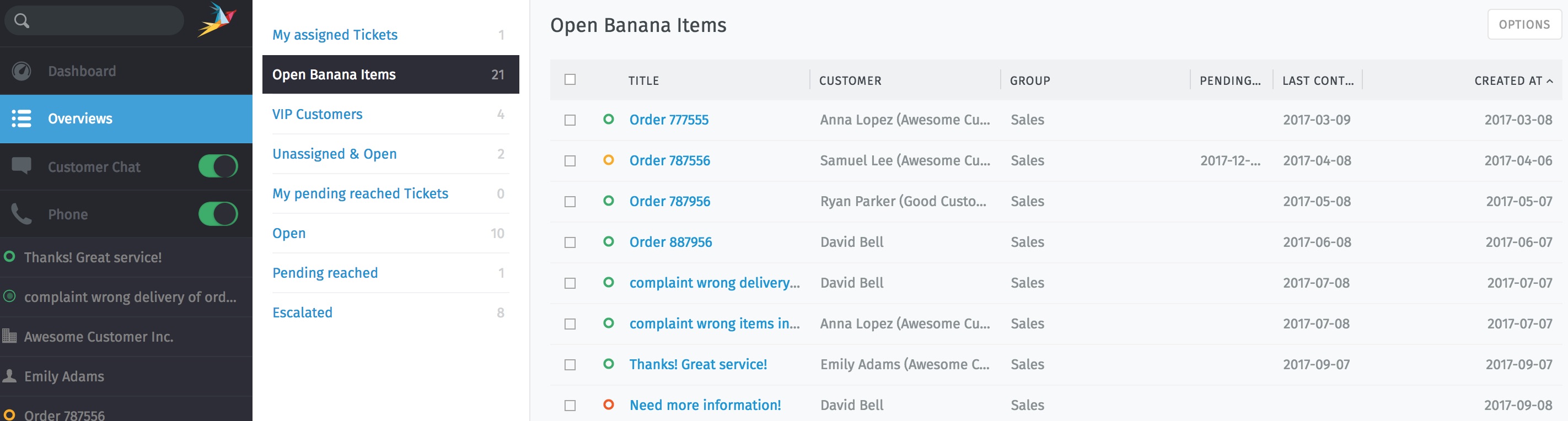
Click Overviews in the main menu to browse tickets.
You can adjust the overviews in some aspects:
Click on a column heading to change the sorting.
Click and drag column dividers to adjust the column’s width.
Adjust the order of the overviews in your user profile.
The need for action is color coded and reflects mainly the ticket states:
Action needed (e.g. new, open, pending reached) |
|
Paused, no action needed right now (e.g. pending) |
|
No action needed any more (e.g. closed, merged) |
|
Immediate action needed (ticket escalated due to an SLA violation) |
If you spot a circle with a blue/pink gradient, it indicates that an AI agent is currently working on the ticket.
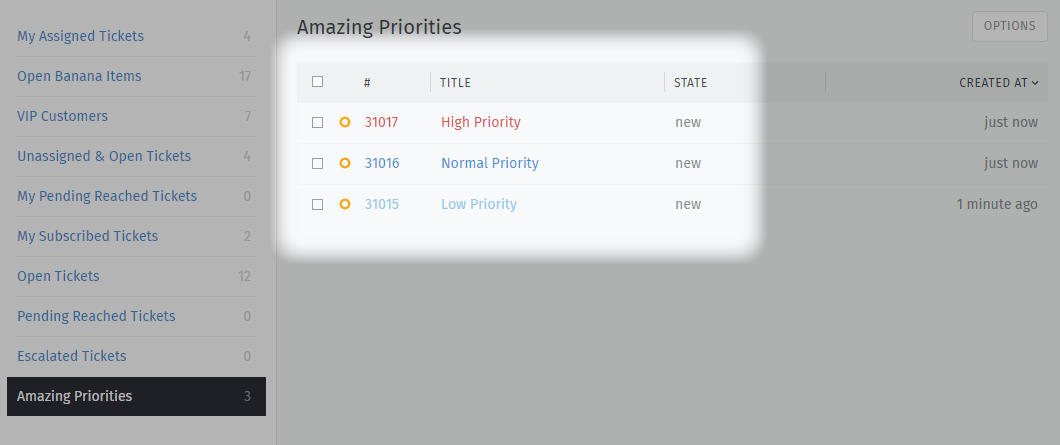
Ticket priorities are color-coded as well and help you to distinguish between the different priorities:
Via Search
If you are looking for a specific ticket, you can use the search. Either click on the search bar at the top of the left navigation sidebar or use the keyboard shortcut s.
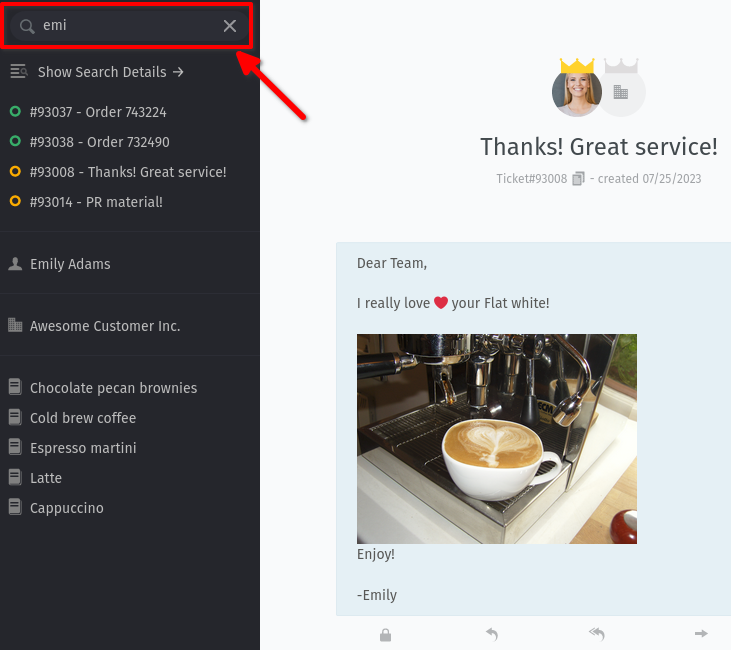
But the search is not only about tickets. Zammad also searches for users, organizations and chat logs. It basically searches for all information which is stored in Zammad and which got indexed by Elasticsearch, like:
Message subject and text
Names and email addresses
Text in file attachments
User and organizations details (like notes, names, etc.)
Knowledge base articles
After entering a search term, you immediately see a preview of the search results. These results are separated by type to make sure you won’t get lost in the results. Selecting one of those results will open a new navigation tab (if not already opened) with the item.
If you press enter or click on Show Search Details, Zammad displays
a page with the search results:
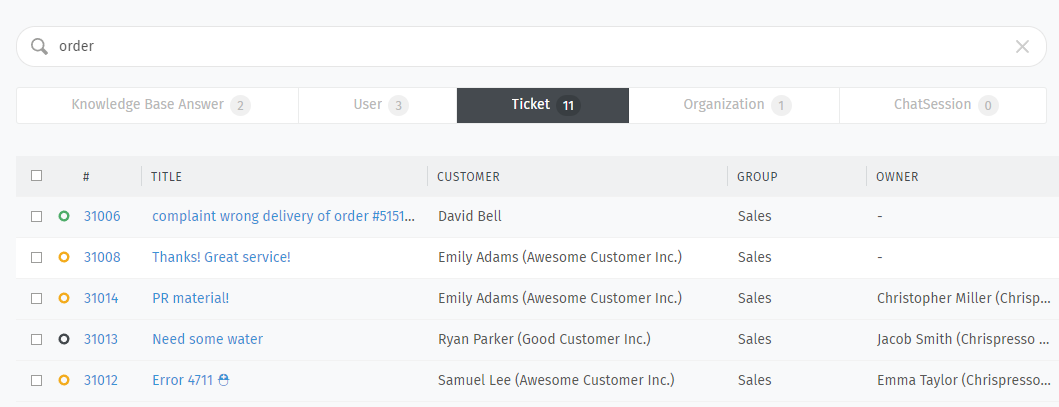
You can narrow down your search by selecting a specific object type (e.g. “User”) in the tab bar below the search bar. To sort the results based on the column’s values, click on a column header. The sorting is indicated by an arrow. Click on the column again to change the sorting from ascending to descending and back. If you still can’t find what you are looking for, have a look at the advanced search page where you can learn how to search for specific attributes like creation date or the ticket owner’s email address.
Now that you know how to find tickets, you may want to create new or work with existing tickets.