Link Tickets
When tickets about related issues arise, they can be linked to each other for easier reference. For example this could be useful if you have multiple customer complaints about the same shipment. Merged and split tickets are automatically linked.
- Link types
There are different types of links between tickets as you might have already seen in merge or split tickets: parent/child links and normal links. The first pair is used for split and merged tickets. The normal link is useful when there is no logical hierarchy between tickets.
However, if you have a main issue and want to create sub tasks, you could link to the main one as a parent of the sub tickets.
- How to link
Make sure to have the ticket sidebar open. Under the Tags section you can find the Related tickets section:
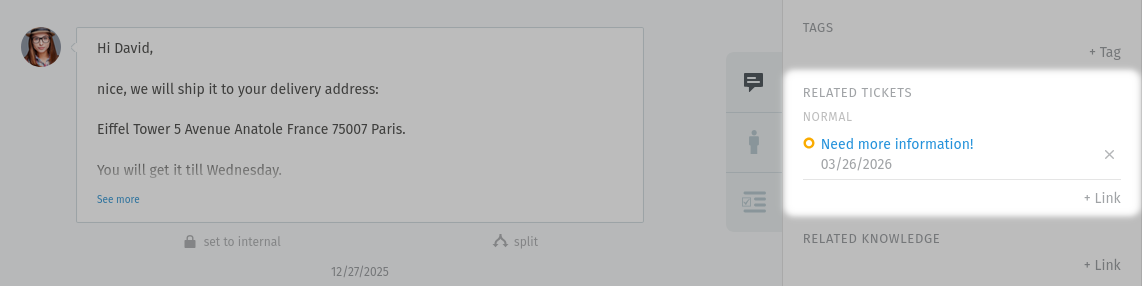
Click the
+ Linkbutton to access the link dialog.- Link dialog
You can enter the ticket number of the ticket you want to link to (see 1), or choose from the list below (see 2). If the customer has an existing ticket, it will show up under Recent customer tickets. You can see your last viewed tickets under Recently viewed tickets anyway. Additionally, you can choose the link type from the drop down menu. You can link to one or more tickets for each type.
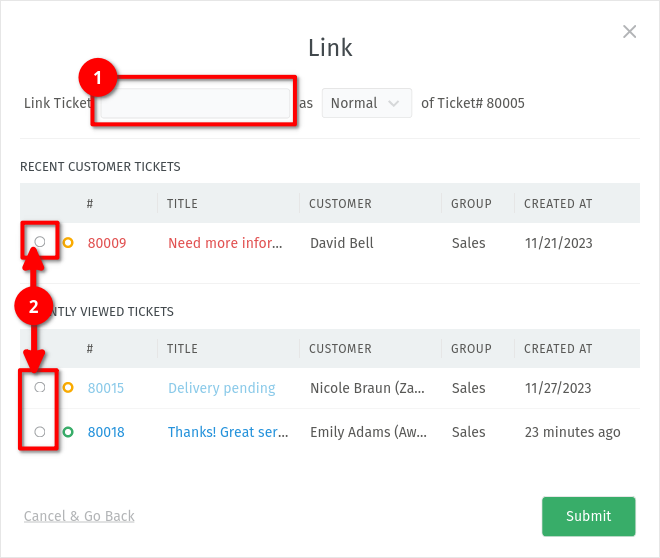
After entering a ticket number or choosing one of the offered tickets from the list, click on the submit button and the tickets will be linked.