Shared Drafts
Genel Bakış
Share drafts for new or existing tickets with other agents of your group. Load, modify and save an existing draft, e.g. as a QA process with colleagues. This feature is optional. If you don’t see it in the menu, that means your administrator disabled this function. Administrators can learn more in the group settings section in the admin documentation.
İpucu
Zammad technically has two draft functions:
Shared drafts (allow others to load the draft)
User drafts
Every time you change a ticket’s field, Zammad will save this in your personal draft. You then can share this as a shared draft if you want to. User drafts are always available!
Handling Drafts
Uyarı
☠️ Overwriting drafts is final
Zammad will warn you in case you’re going to overwrite an existing draft. This also applies to your personal draft in case you’re loading a shared draft.
Loading a shared draft, (adjusting and) updating the ticket with an article will cause Zammad to remove the shared draft.
This also applies if you’re sharing the draft before submitting! Zammad expects that the draft is no longer needed.
- Load a draft
- Existing ticket
In the ticket detail view, a button
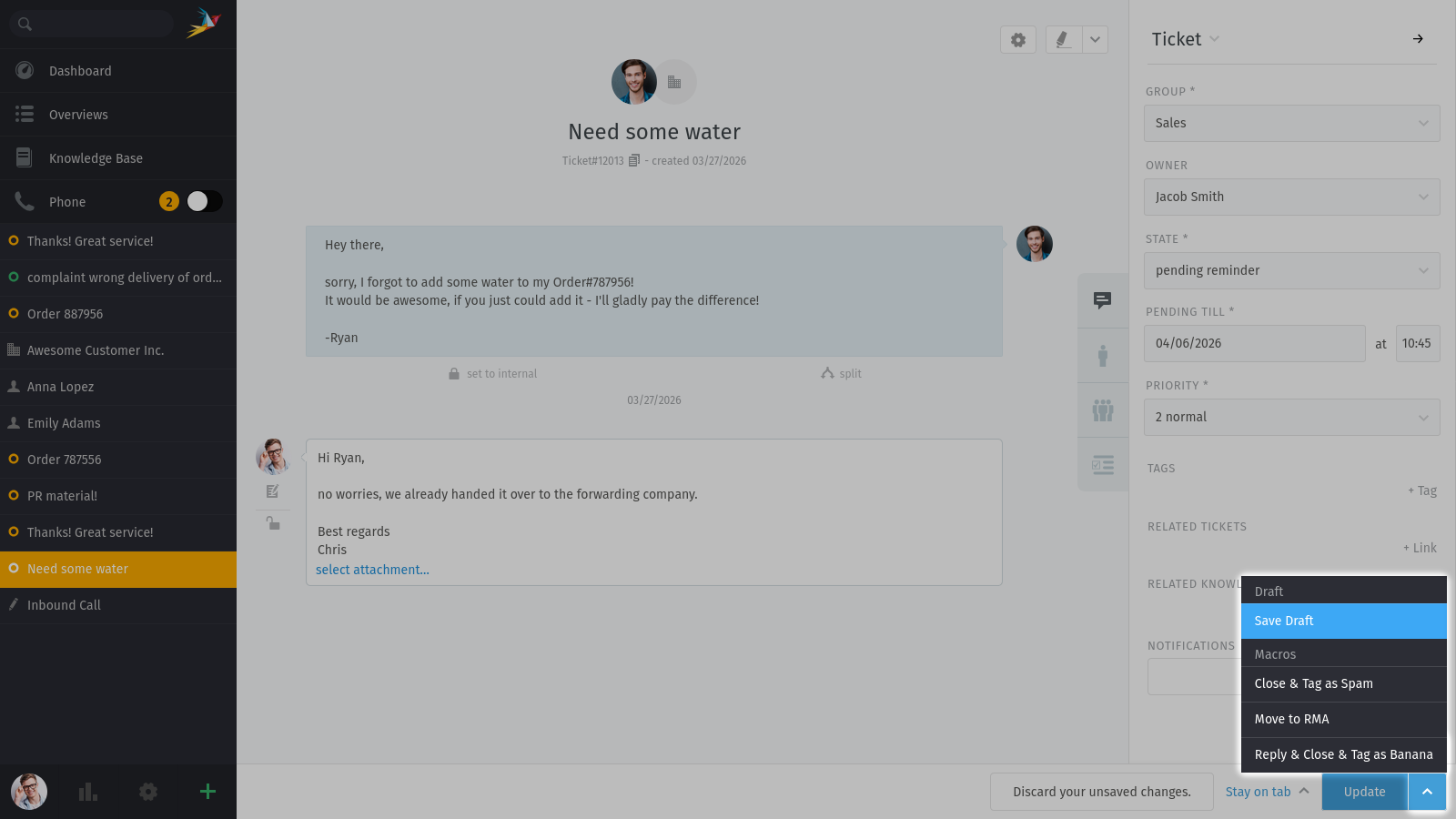
📝 Draft availableis shown if a draft is available from you or another agent (see first screenshot on this page). Hovering over the button tells you who created or changed the draft.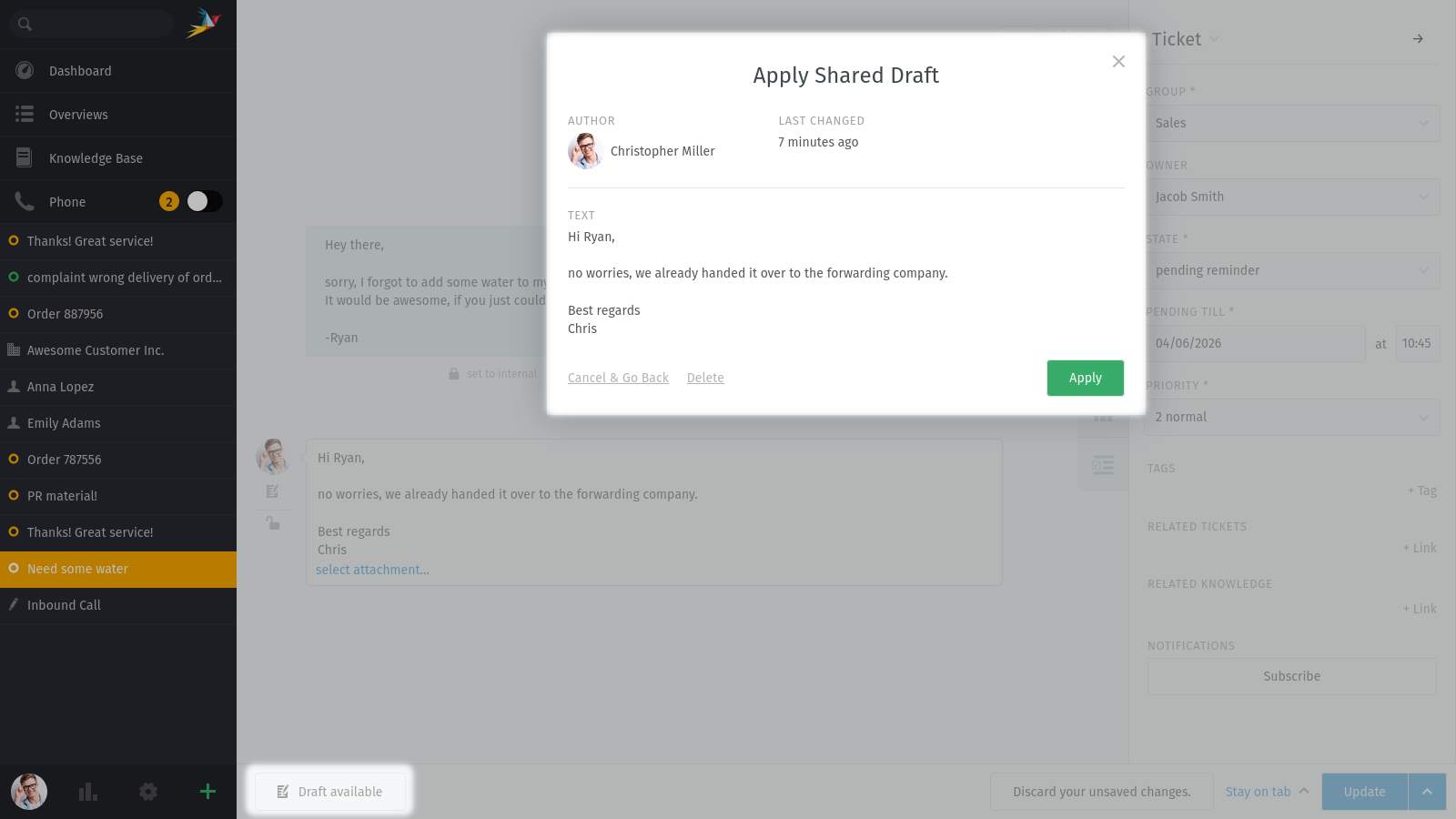
- New ticket
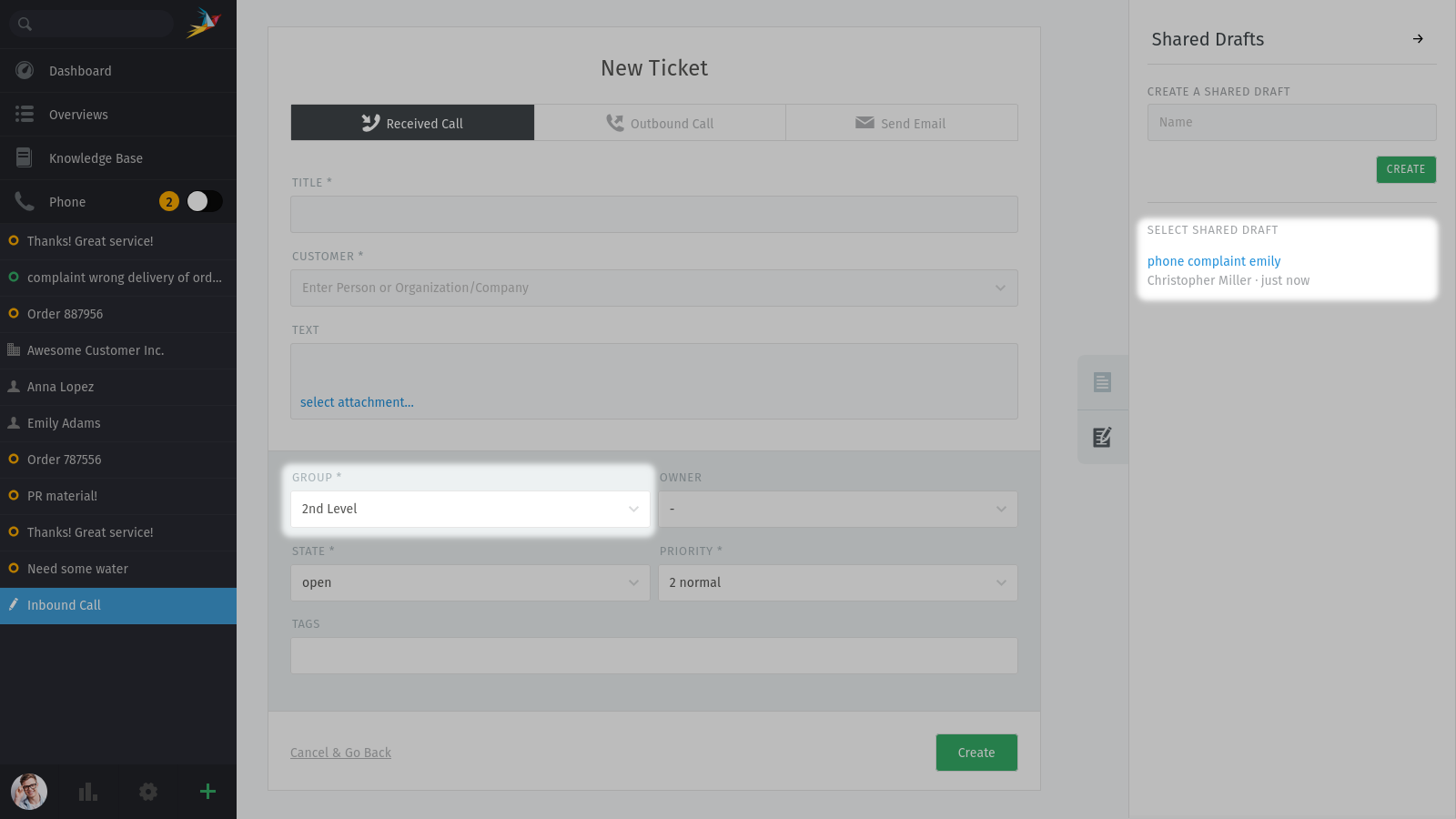
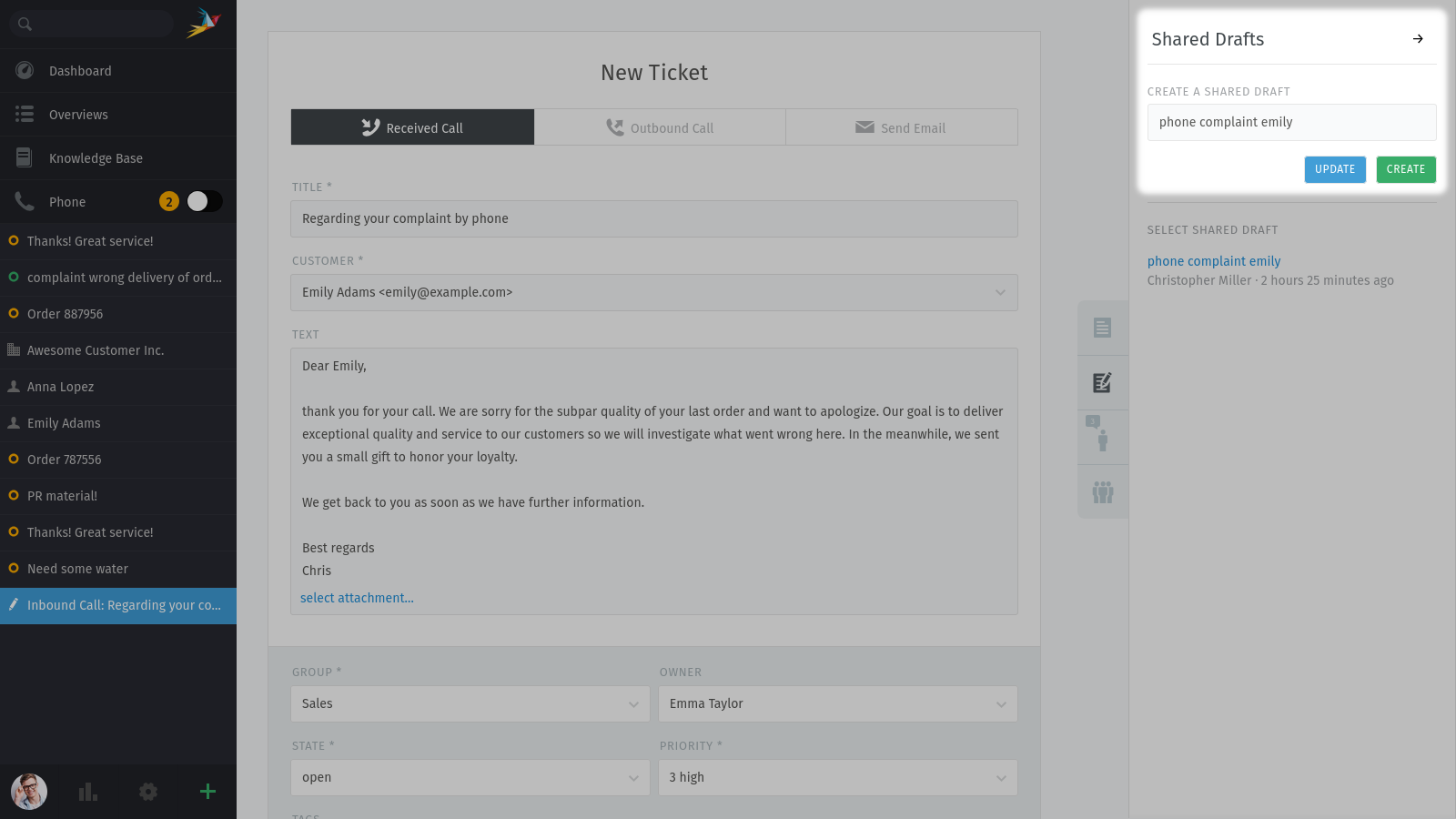
If you’re creating a new ticket and already selected a group, the shared draft sidebar tab on the right side shows up. The shared drafts tab is always hidden if no group is selected!
- Remove draft
You can remove any draft (no matter if for new or existing tickets) from within the draft preview screen. Use the
Deletelink on the lower end of the dialog. This has no effect on local drafts, agents may have loaded already.- Saving drafts
- New ticket
- Adding new drafts
To save a new shared draft, set the ticket settings, customer, ticket title and article as desired. Make sure to select a group that supports shared drafts. When you’re ready to save the draft, click on shared draft sidebar tab on the right side, enter a meaningful name and click on the
Createbutton.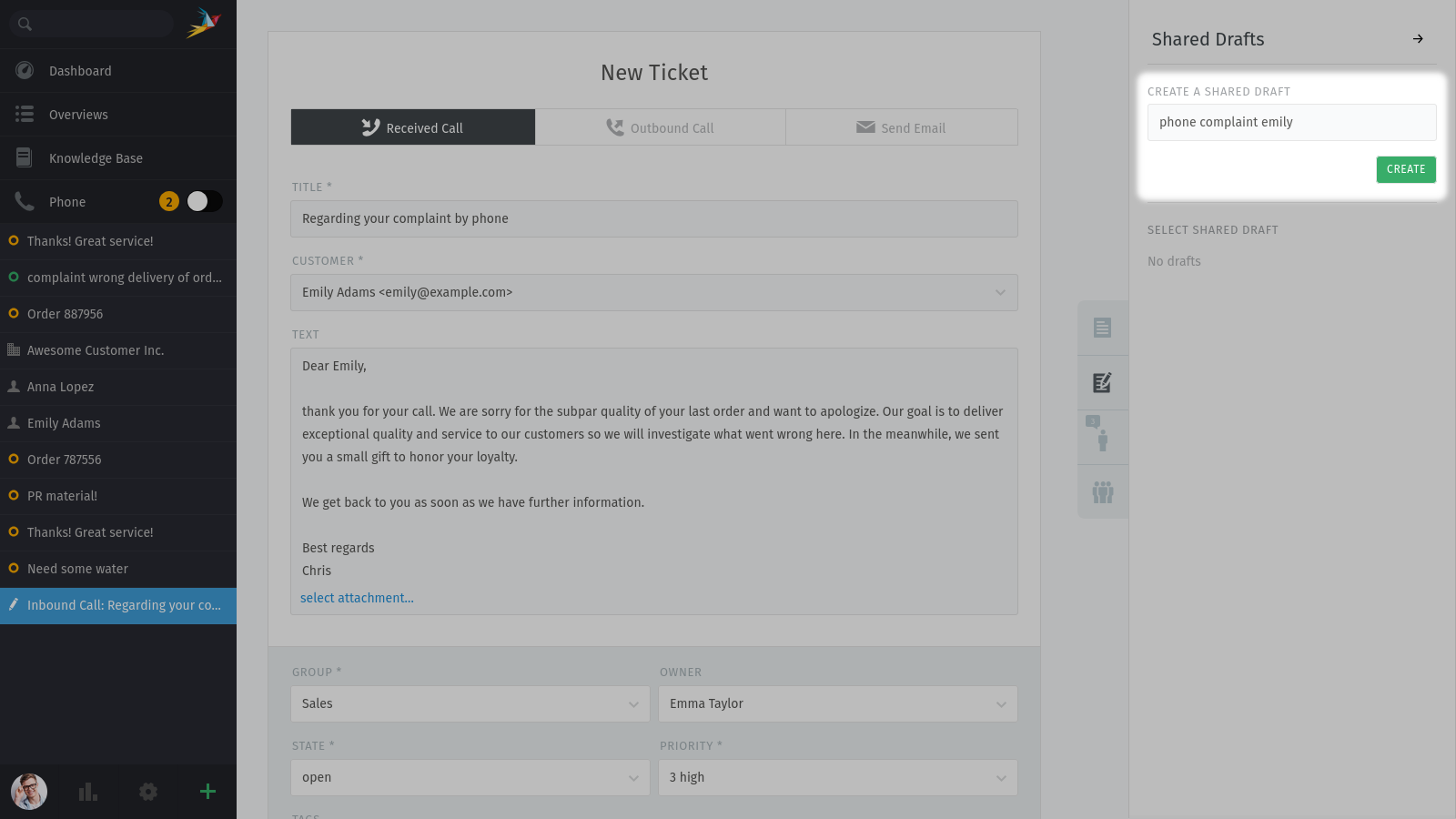
- Update existing drafts
In order to update or rename existing shared drafts for new tickets, simply load the draft in question. Change the information (e.g. ticket settings or content) needed and, if needed, update the drafts name on the right side of the ticket. This way you can not just update existing drafts, but also use existing drafts to create another copy!
- Existing ticket
Use the
^button next to theUpdatebutton. If the group of the ticket (or in your selection) allows shared drafts, Zammad will provide the optionSave Draft. All current changes on the ticket (ticket settings, article and its attachments) will be saved to the shared draft.When saving was successful, the button
📝 Draft availableis show as you can see in the screenshot about loading a draft.