Sekmeler
As you click through Zammad, you will see a list of entries appear in the navigation sidebar on the left side. These are your open tabs. You can freely switch between open tabs without losing your work - all unsaved changes are automatically backed up to the server.

The following items get opened in a new tab. If you have the item already open, Zammad switches to this tab instead of opening a duplicate.
- 1 Existing tickets
When you open an existing ticket from an overview or the search.
- 2 New tickets
When you create a new ticket via the button at the bottom of the navigation sidebar.
- 3 User Details
When you click on a user name or avatar in a ticket to open the user detail page.
- 4 Organization Details
When you click on an organization name or avatar in a ticket to open the organization detail page.
- 5 Detailed search
When you search for a ticket, user or organization and click on
Show Search Details.
x
Tüyo
🖱️ UI Protipi
Ticket states are color-coded:
Action needed (e.g. new, open, pending reached)
Paused, no action needed right now (e.g. pending)
No action needed any more (e.g. closed, merged)
Immediate action needed (ticket escalated due to an SLA violation)
A pulsing dot means that a ticket has new activity since you last viewed it.
Yeniden düzenlemek için sekmeleri sürükleyip bırakın.
Tab Behavior in Ticket Detail View
You may have noticed the Stay on tab button next to Update on the lower
right already. This behavior of a tab can be configured by your administrator
globally. You can overrule this setting based on your personal
preference.
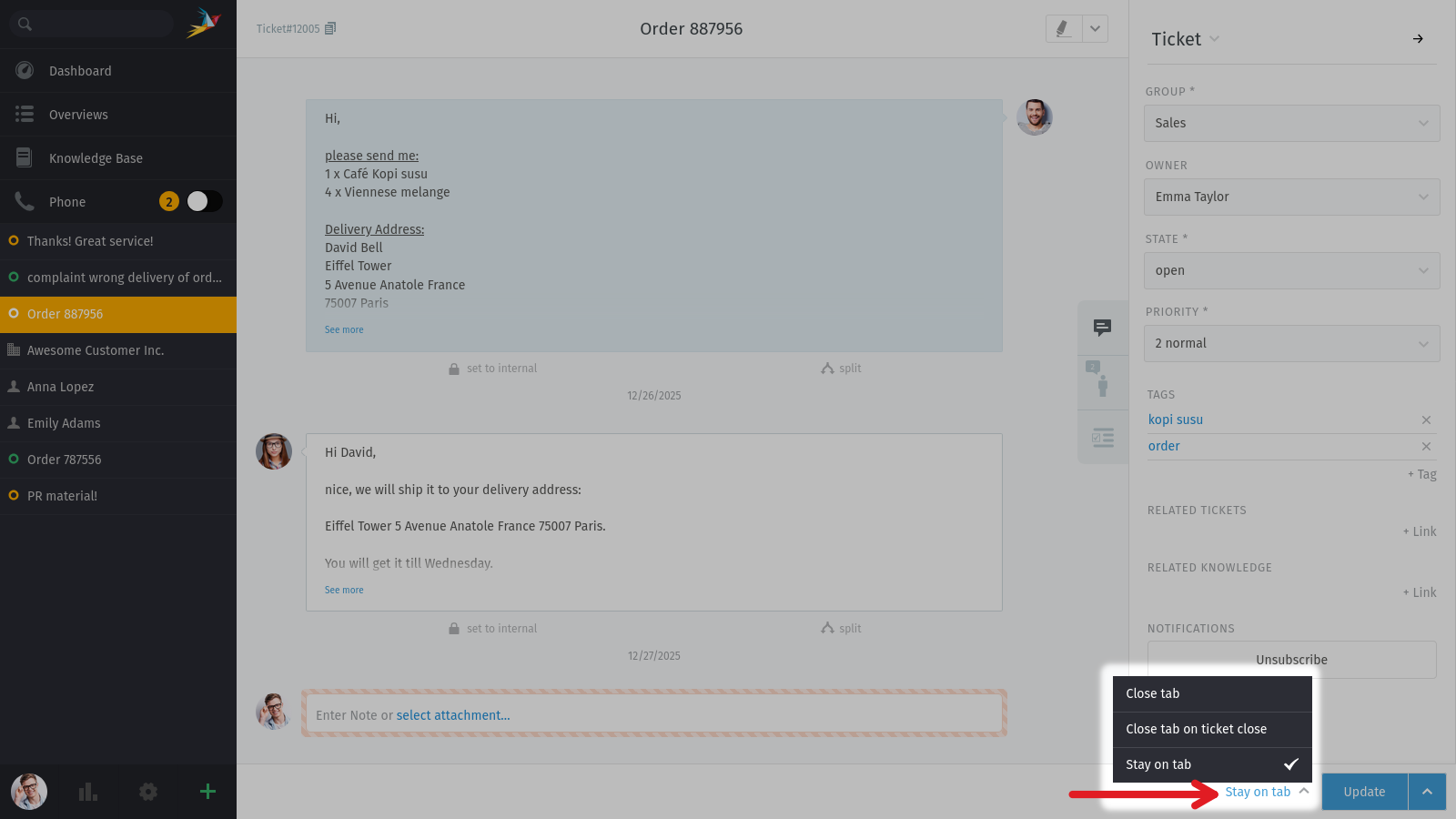
To overrule your administrator’s settings, simply choose the action you prefer. Zammad will remember this preference until you change its setting.
- Close tab
Upon updating the ticket, Zammad will automatically close the tab. You’ll be returned to the last view that was open.
- Close tab on ticket close
Ticket tabs will be closed only if you change the state to “closed” upon ticket update. This does not apply for pending states that end in closed states.
- Next in overview
If you opened a ticket from any overview, Zammad will jump to the next ticket in said overview. Zammad recycles the open tab.
This option is only available if you open the ticket from an overview. Zammad will ignore the setting if you opened the ticket directly and fall back to
Stay on tab.- Stay on tab
Updating the ticket doesn’t have any effect on the tab. This is the default setting.
Now that you are an expert in tab handling, one more thing might be interesting as well: the maximum number of tabs is 30 due to performance reasons. In case you reach the limit and open another tab, the first opened tab gets closed automatically.