Work with Tickets
You found your way into an existing ticket, congratulations! Now let’s have a look what you can do and how to do it.
Generally, working on existing tickets means keeping up with a customer
correspondence in a thread/conversation in the ticket detail view.
Any time you open a ticket, a new tab will appear in your
navigation bar on the left side. To close a tab (in the
sense of remove it from the navigation bar, not setting the ticket state to
closed), just click the X button in the tab. Zammad automatically saves
your changes in opened ticket tabs, no matter if you already applied the changes
or just edited things and switched to somewhere else. This means it is no
problem to create a new ticket while editing an existing one. Simply switch back
to the other tab.
For the most changes (except tags or rename title, for example), an explicit update of the ticket is needed. So make sure to click the Update button on the right side of the footer bar when you are happy with your changes.
Changing Ticket Attributes
As you may know, there are additional ticket attributes such as group, priority and owner that you can set. If you haven’t read Ticket Basics yet, check it out to learn more.
Create a New Article
No matter if you create a new article from scratch or respond to a customer article, you can choose from different article types:
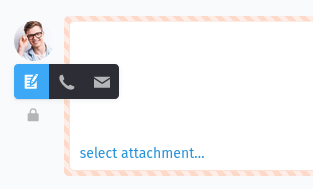
Note: Write a reminder for yourself and other agents, ask a colleague a question by mentioning a user or add new information to the ticket. The default visibility is « internal », which means the customer can’t see the note.
Call: Note down a summary of a phone call you had with the customer.
Email: Send an email to anyone about the ticket. The name of the ticket is used for the subject of the email (click on the title to rename it).
To choose another article type, click the note icon and choose a different type:
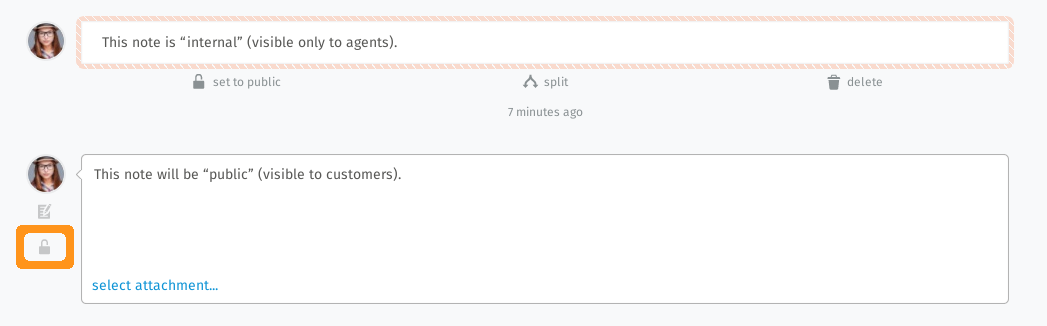
Click the lock button 🔒 to change an article’s visibility. Internal visibility appears as a dashed border in a pale red color.
The article editor is a rich text editor. This means you can:
Copy and paste (or drag and drop) formatted text, images and file attachments.
Apply formatting by using the built-in keyboard shortcuts or by selecting text and choose from the formatting options in the bubble menu. This menu automatically appears when selecting text and looks like this:

Use text modules by typing : : which can be a huge time saver.
Mention colleagues by typing @ @ followed by their name to ask a question or notify them.
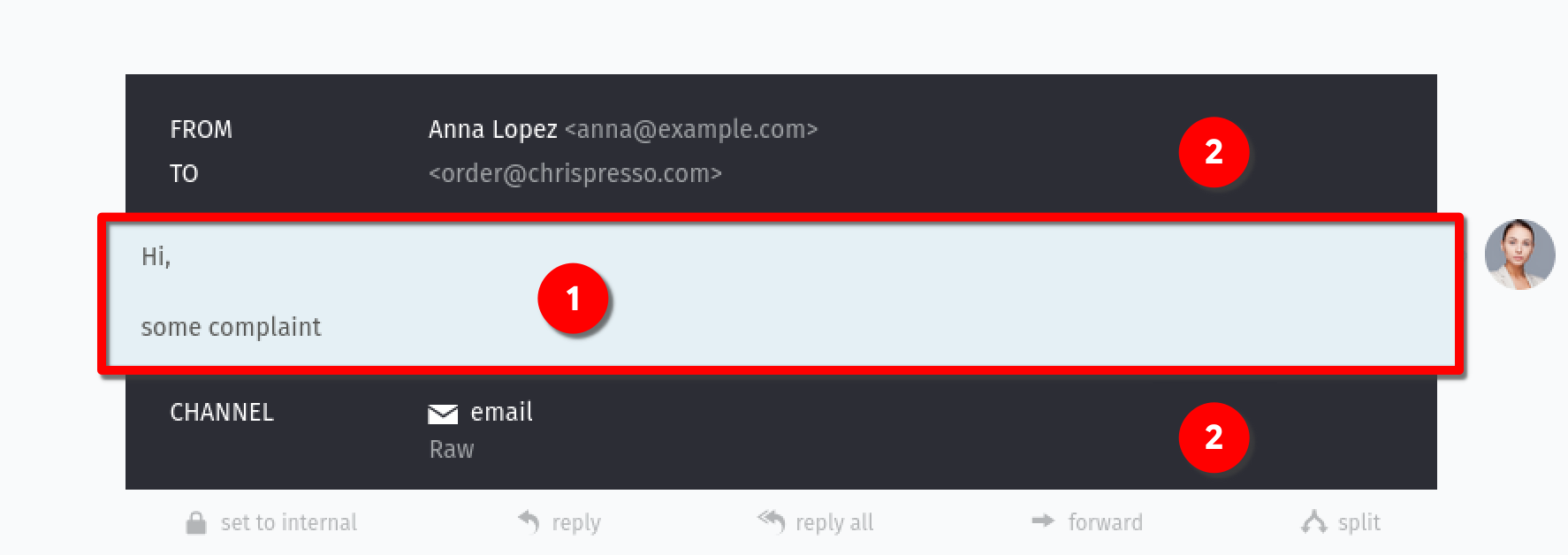
Every new article appears at the end of the conversation, which means below the existing articles. To see detailed information of a message, just click on an article (1). This opens additional meta information (2):
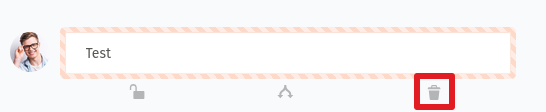
You might wonder how to delete articles. The answer is you can only delete articles that you have created yourself and which are not older than 10 minutes. To see the delete button in articles of a communication type (emails, calls), their visibility has to be switched to internal first.
Add an Article from Scratch
Click on the text field at the bottom of the ticket detail view which is labeled with Enter Note or select attachment… to add an article. By default, the article type « Note » is selected and the visibility is set to « internal ».

Respond to an Article
To forward or reply to an article, use one of the response buttons under an article. The behavior is similar to an email client.
Reply: Allows you to answer the article. The recipient is automatically pre-filled. The reply is sent via the same channel as the original message. This lets you easily send an answer to a customer or third party, if involved.
Reply all: Same as above but uses all recipient addresses from the original message as recipients for your new article. Only available for email channels.
Forward: This means you can forward the original message to a third party or anybody else. The original message and attachments are included in your new article.

Zammad even allows you to quote text from an existing article. This is especially helpful if an answer refers to different parts of the original message or the text is pretty long. This feature is limited to communication type articles like email where the response buttons are available.
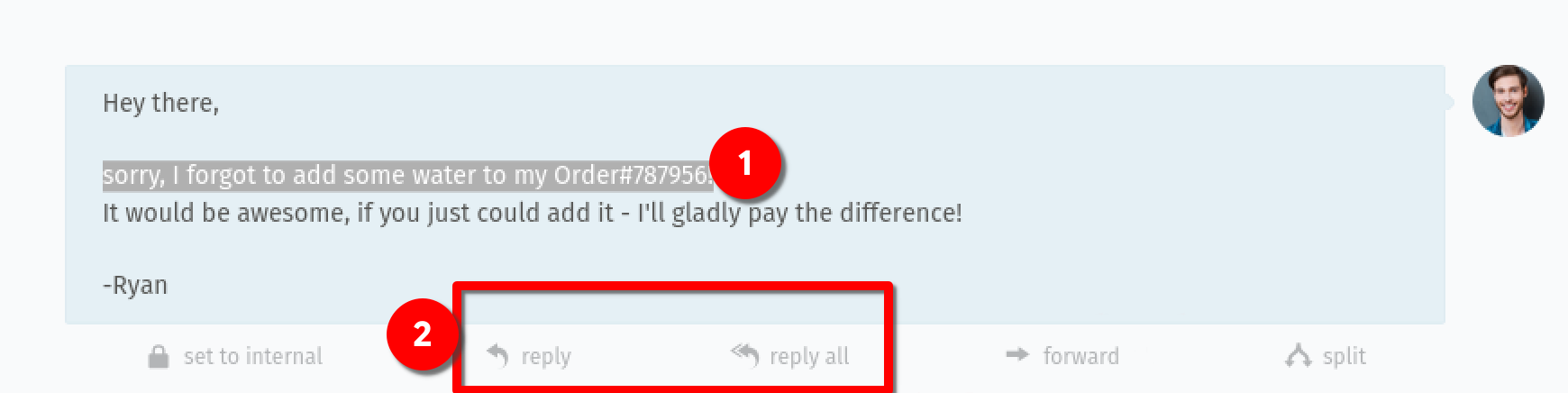
To quote text, simply select the text you want to quote (1) and use the Reply or Reply all function (2):
This adds the marked text with a timestamp in your article editor where you can answer it. Example:
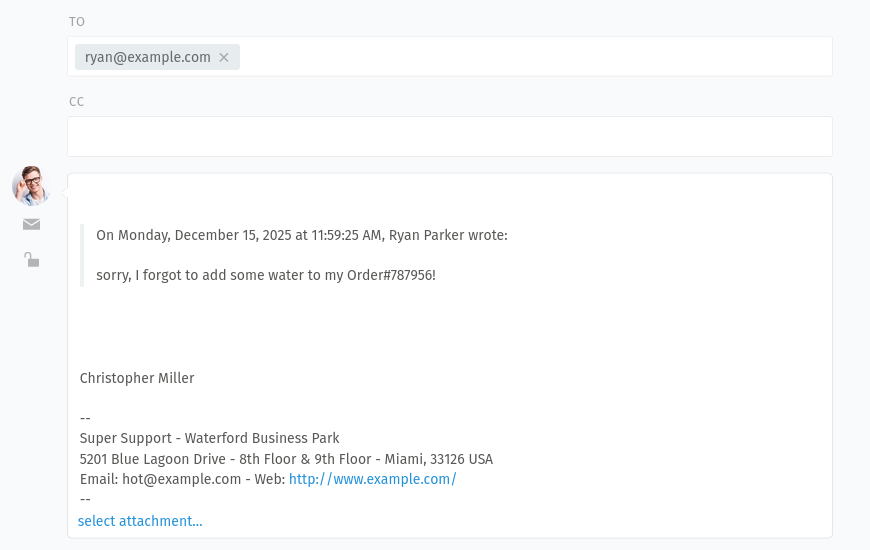
You can use the quoting even multiple times to quote different parts of the text. Just select another part of the text, click on the same response action as before and it gets added as another quote to your editor. You can split quotations by using enter or shift + enter in the editor.
Rename a Ticket
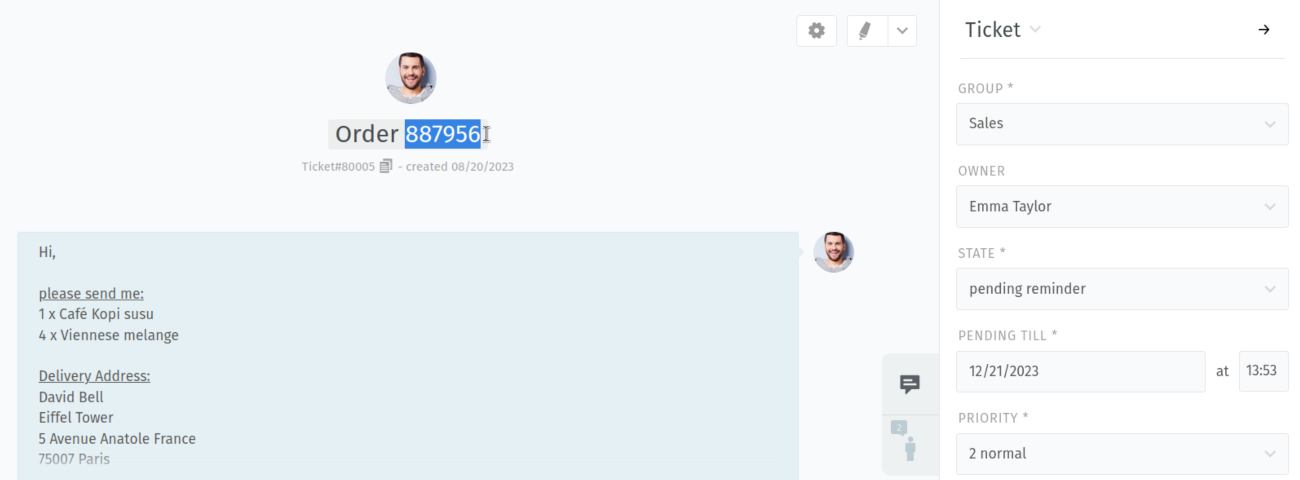
To rename a ticket, simply click on the title in the header bar and start typing. This title is used as subject in email communication and shows up in several places like overviews.
Copy Ticket Number
If you often need the ticket number (e.g. to paste it in a third party chat
app), use the 🗊 icon next to the ticket title to copy the ticket number to your
clipboard. This includes the complete ticket identifier, including the ticket
hook, e.g. Ticket#50071. In case you scrolled down in the ticket, you can
find the button on the left side of the header bar.
But wait, there is even a
keyboard shortcut for that. Simply press
. and the ticket number is copied to your clipboard. To include the
ticket title as well, press . twice. Example:
Ticket#50071: Coffee grinder broken.
Simultaneous Ticket Processing
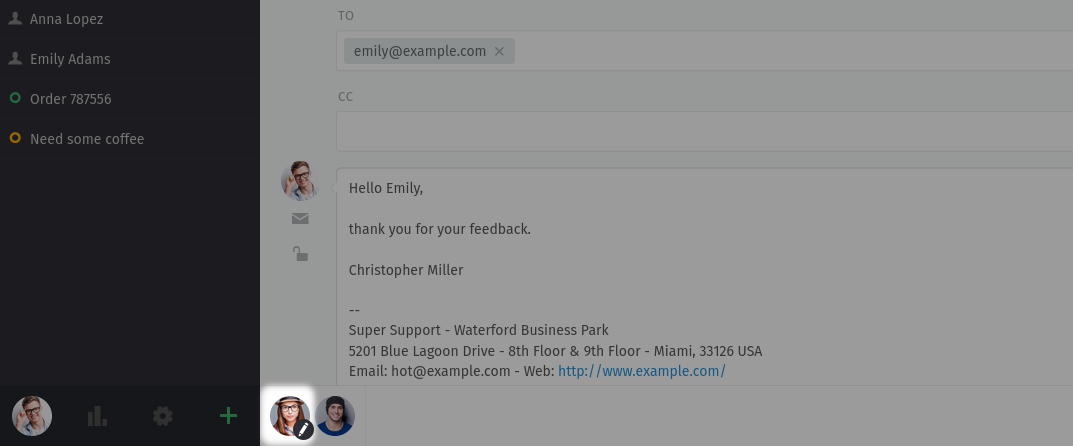
It can happen that two or more agents open a ticket at the same time. To prevent edit conflicts and customers receiving contradictory answers, Zammad shows you who is viewing or editing the ticket currently. You can find this information in the bottom bar where avatars of all agents are displayed. Be sure to communicate with your colleagues to prevent these problems before they arise.
Depending on the additional icon and if the avatar icon is faded, it means:
Avatar: Another agent is viewing the ticket.
Faded avatar: Another agent opened the ticket but is currently not actively viewing it.
Avatar with pencil icon: Another agent is currently actively working on this ticket.
Actions sur les tickets
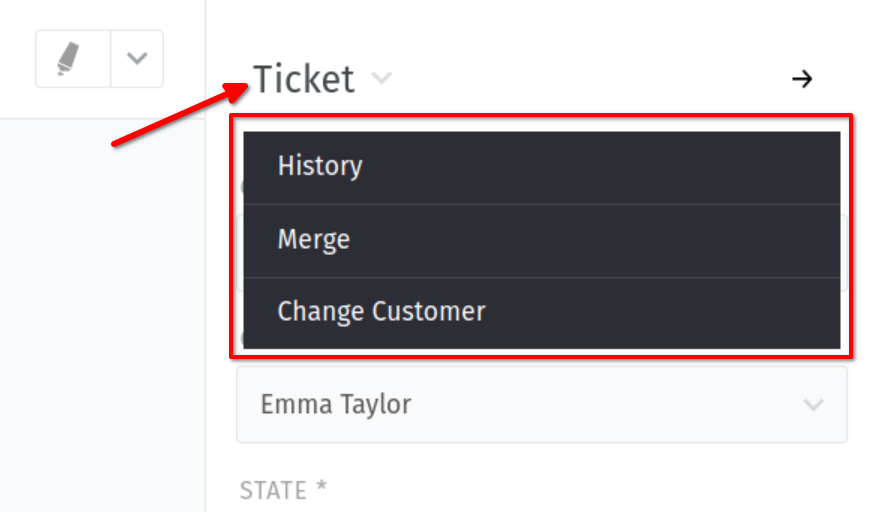
- Historique
See a comprehensive list of updates to the ticket, performed by any user, since its creation. Useful to check who did what and when.
- Fusionner
Migrate all messages/notes to another ticket. Useful if you have more than one ticket about a single customer issue. See Merging Tickets for details.
- Changer le client
Réassigner le ticket à un autre client.
Monitoring Ticket Escalations
Service Level Agreements (SLAs) ensure timely responses to customer requests. Your administrator sets these goals - such as responding to all inquiries within eight hours - with optional custom deadlines for specific customers. When such a deadline is passed, the ticket escalates.
Zammad notifies you by default when tickets approach or exceed their deadlines. Configure these notifications in your profile settings. Zammad also ships a default overview called « Escalated Tickets ». This overview includes already escalated tickets and tickets which are expected to escalate within the next 10 minutes.
SLA-relevant tickets display a timestamp in the ticket detail header. Hover over this timestamp to see all escalation stages and deadlines in a popup. It shows all upcoming or reached escalation times based on your SLA configuration:
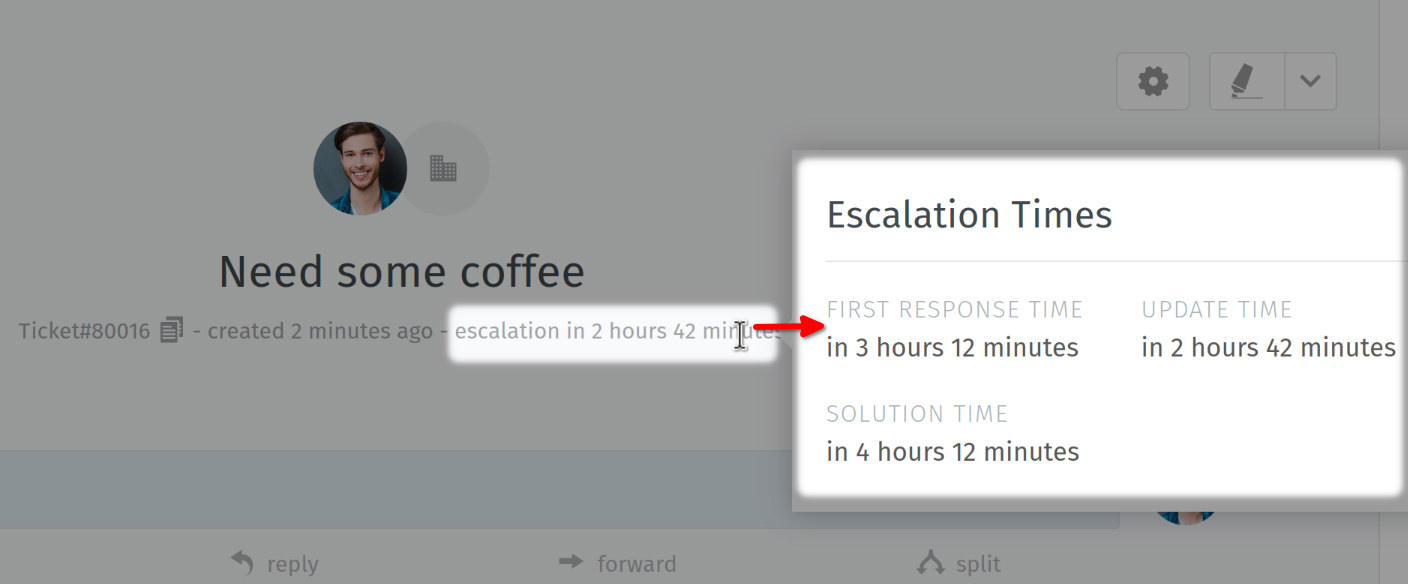
Indication
The escalation times are calculated based on your business hours. This means when your business hours start at 9:00, a ticket is created at 7:00 and you have an 1-hour deadline, it will escalate at 10:00, unless resolved earlier.
The SLA feature requires a configuration from your admin. In case you don’t see escalation timestamps, either the ticket is not SLA-relevant or the feature is not configured. Admins can refer to the SLA configuration documentation.
Highlight Text in a Ticket
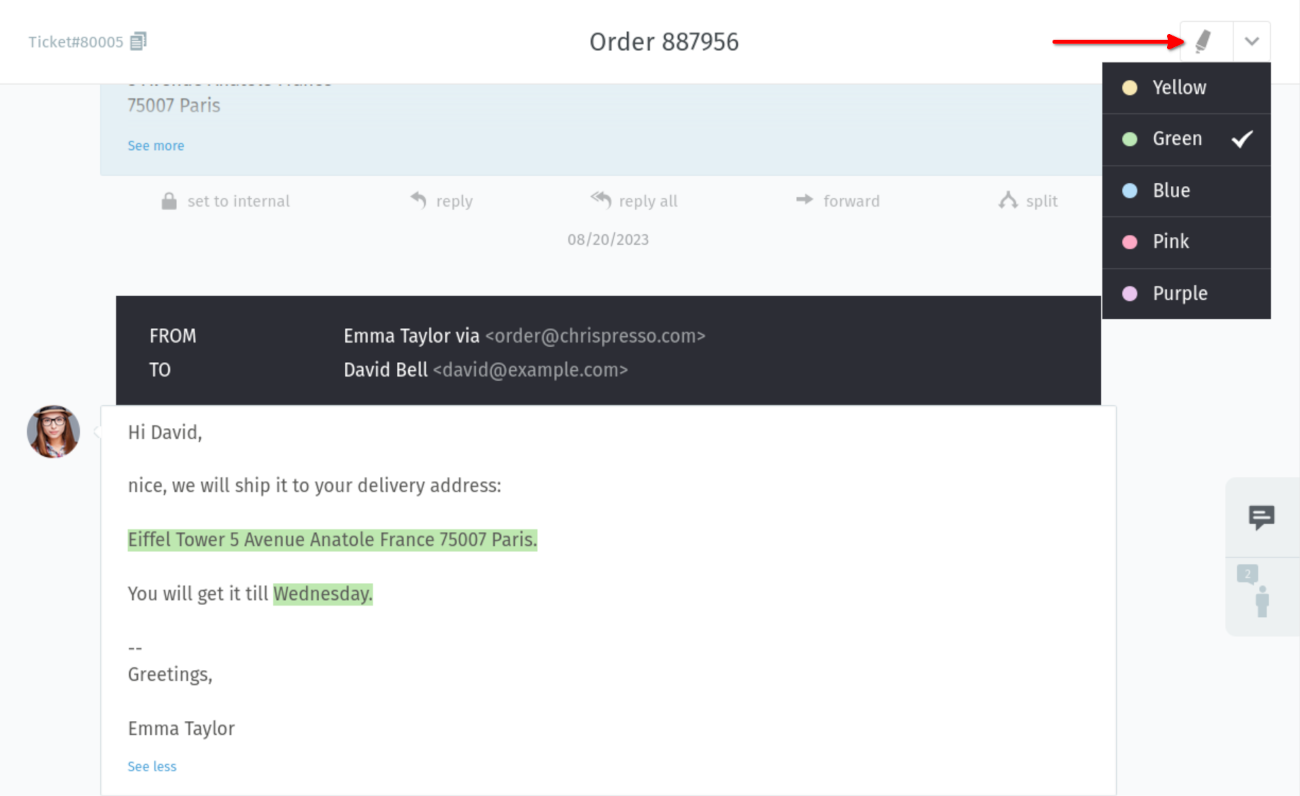
Use the highlighter tool in the upper right corner to mark up important text. This feature is not about highlighting text in the editor to send it to customers. It is just about highlighting important parts for other agents.
First select the text you want to highlight, then click on the highlighter button with the pencil. In case you want to use a different color, open the color menu by clicking on the down arrow in the split button. To remove the highlighting, click on the button again with the selected text.
You now know the basics and how to work with tickets in general. However, there are many more features in Zammad which can be very useful in your daily work. Have a look at the Advanced Topics and Extra sections in the left navigation menu where you can find more information.