Reporting
The reporting is useful to view statistics, get an overview of the number of tickets (e.g. tickets of a specific customer) and to download ticket data from Zammad. You can find the reporting section in the bottom left corner in Zammad next to the avatar icon or your initials:

If you can’t see the reporting button, you have no permission for it.
The reporting screen consists of various sections:
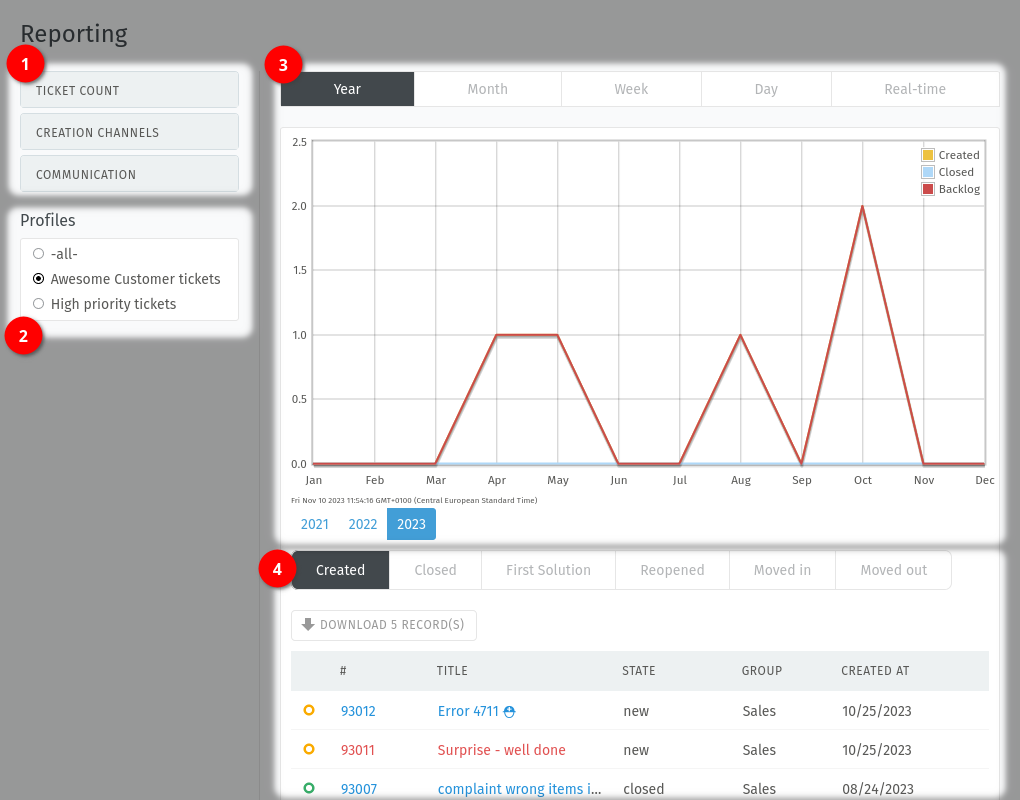
Additional filtering based on the selected profile (see 2). You can filter by status (« Ticket Count »), « Creation Channels » and « Communication » types based on your channels.
Profile switcher: here you can easily switch between the different profiles, which were created in the admin panel under « Report Profiles ». The shown tickets and numbers are always limited to the current profile you have selected here.
Time interval/period switcher and graph area: here you can define the interval you want to see (e.g. « Month ») as well as the time period (e.g. « Jul »).
Preview and download section: here you can find a preview of tickets and a download button based on the report profile and your filtering. The download feature provides the tickets in a
.xlsxspreadsheet.Note
The ticket preview and download button are only displayed if you selected a filter based on « Ticket Count » (see 1).
Due to technical reasons, the download is limited to 6.000 entries.