User Menu & Profile Settings
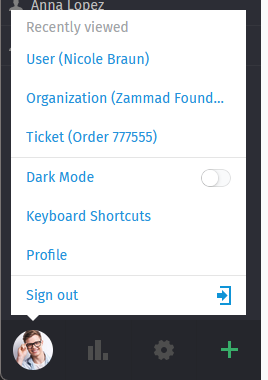
Click on your avatar or initials at the bottom of the navigation sidebar to open the user menu. You can find some useful information and links, apply a theme and open your profile settings.
User Menu
Clicking on your avatar picture provides the following sections in the user menu:
- Documentation links
Find a link to this documentation at the top of the menu. In case you also have admin permissions, there is a link to the admin documentation as well.
- Recently viewed
All information you’ve viewed previously (tickets, users, organizations). Helps you to easily access items without searching or scrolling through your overviews. Since this list is limited, old items will automatically disappear.
- Further actions
- Dark mode
Quickly toggle dark and light mode without using a keyboard shortcut.
- Continue to mobile
Opens the mobile view of Zammad. Use this if you are on a device with limited display size and the automatic forwarding didn’t work.
- Keyboard shortcuts
- Profile
Opens your profile settings which provide further options regarding your account. Customers do not have access to all areas, even if your administrator added the permissions to them.
- Sign out
Use the sign out button to end your user session. If you didn’t tick Remember me during login or use a third party login, your session will automatically be invalidated on closing your browser.
x
Paramètres de profil
Click on Profile in the user menu to open the profile settings of your
account.
- Apparence
Select how Zammad should look. Zammad will remember the setting you choose here.
Dark
Light
Sync with computer
For dark and light you’ll fix the dark or light mode to your taste. If you choose sync with computer, Zammad will dynamically select the mode depending on what your client prefers at that moment. Note that this sync option highly depends on your browser. If your browser does not support syncing, this setting basically has no effect. However, most modern browsers are capable of this feature.
- Langue
Définir la langue d’affichage du système.
- Avatar
Upload an avatar image.
- Password & Authentication
Change your login password and manage your two-factor authentication methods (both may be disabled by system admin).
Indication
Two-Factor Authentication is an optional feature. Administrators can learn more in the two-factor authentication documentation.
- Notifications
- Notifications
Select where, when, and for which groups you want to receive notifications, or choose a new notification sound. Notifications are available to agents only.
You can always reset your notification settings to system defaults by clicking on the button at the bottom of the screen.

Use the first four columns to choose when to receive internal notifications. The right column enables email notification as well.
- Limit Groups
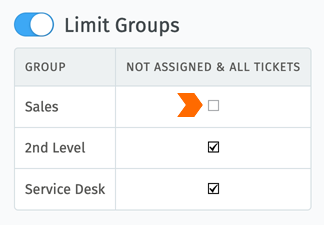
Par défaut, vous recevrez des notifications pour tous les tickets de tous les groupes auxquels vous appartenez - même pour les tickets qui sont assignés à d’autres opérateurs. Utilisez la boîte Limiter les groupes pour désactiver de telles notifications sur une base par groupe. (Vous continuerez à recevoir des notifications pour vos propres tickets).
If you turn on Limit Groups feature, but disable the notifications from all groups, you may receive the following warning.
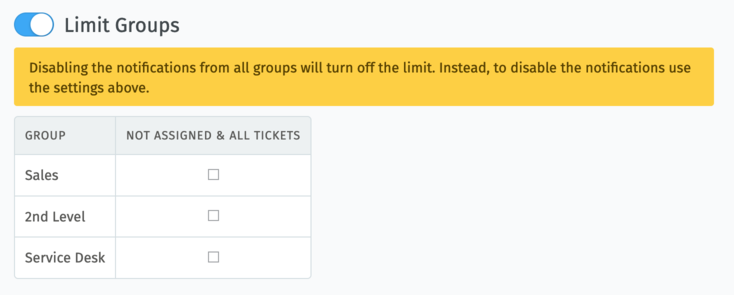
In this case, saving your settings will implicitly turn off Limit Groups feature, since no limits will be left in effect.
Indication
The contents of these email notifications can be customized on self-hosted installations. Administrators can learn more in the system notification configuration.
- Absent du bureau
Schedule absence periods in advance, and designate a substitute to handle your tickets while you’re gone.
Your substitute will receive all your ticket notifications during your absence, and have a custom overview created to help keep track of your tickets. You will receive notifications while you are absent.
- Aperçus
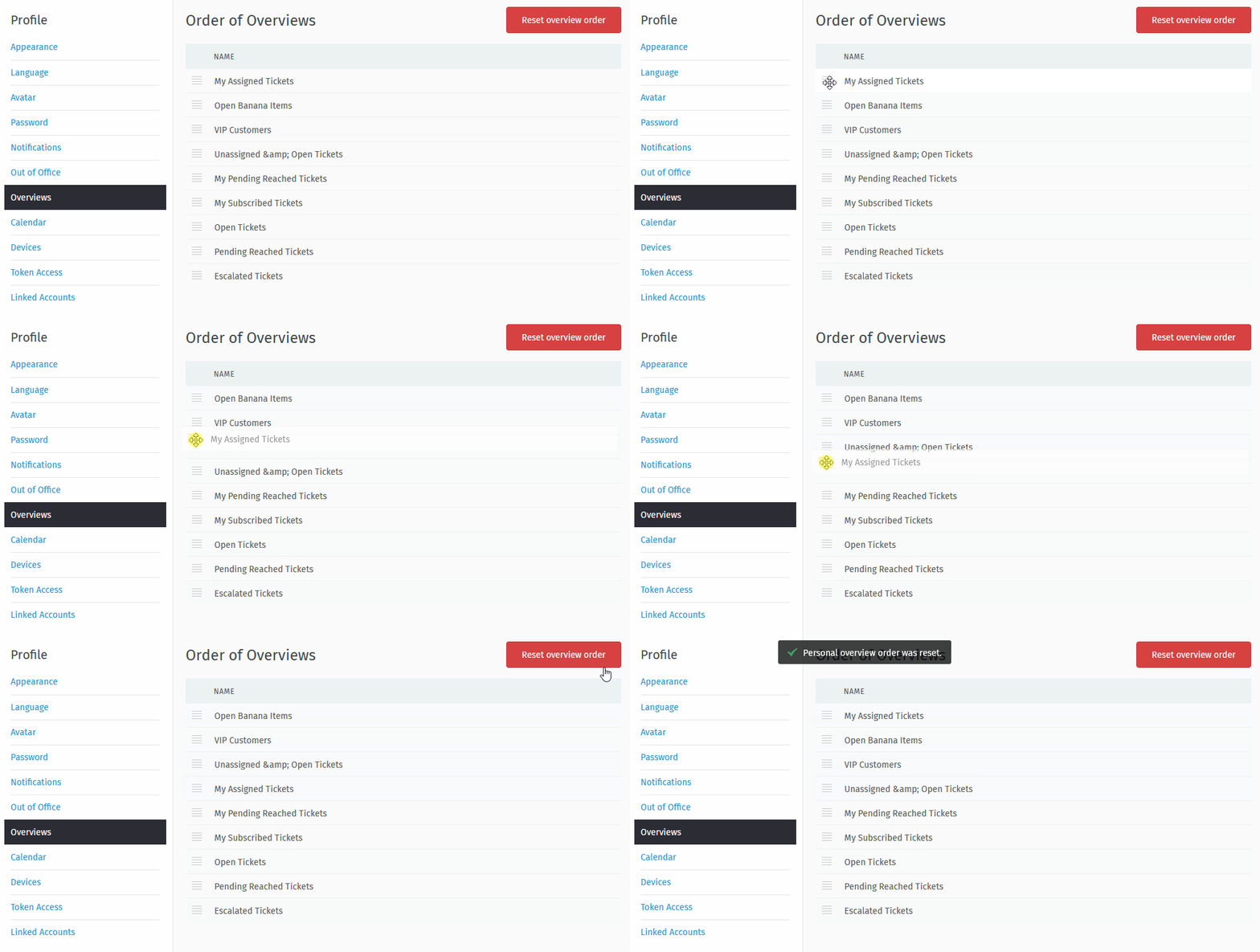
Tired of the overview order your admin decided on? This section allows you to choose an overview order that fits you the best.
You can revert to the default instance ordering at any time by using the upper right button
Reset overview order.Indication
This option is only visible to agents by default. It can be completely deactivated by your admin.
If it is activated, the order does not change, even if your admin renames or reorders the overviews. The overview order is stored in your profile and thus applies to any device you use with your account.
- Calendrier
Add your ticket deadlines to your own favorite calendar app with the iCal link listed on this page.
- Périphériques
See a list of all devices logged into your Zammad account (and revoke access, if necessary).
- Jeton d’accès
Generate personal access tokens for third party applications to use the Zammad API.
Astuce
Always generate a new token for each application you connect to Zammad! This makes it possible to revoke access for individual applications if a token is ever compromised.
- Comptes liés
See a list of third party services (e.g. Facebook or Google) linked to your Zammad account.